
Assembling the Pieces: From Assembly Text to Binary Objects
Your compiler spits out assembly, but computers don’t run text files, so what happens next?

Introduction
In our last article, we looked inside the compiler and saw how it builds an Abstract Syntax Tree, checks your syntax, and generates assembly code, those mov, call, and ret instructions. We generated main.s and source.s using g++ -S. Those are text files you can read.
But your CPU doesn’t execute text. It needs binary machine code which are ones and zeros. That’s where the assembler comes in. The assembler’s job is dead simple: take assembly text (.s files) and translate each instruction into its binary equivalent. The output is an object file (.o on Linux, .obj on Windows).
These are chunks of machine code, but they’re not complete programs yet. They have missing pieces such as references to functions in other files or libraries. That’s what the linker will fix in Part 5.
In this part, we’ll compile our code into separate object files using -c (full form: --compile). Then we’ll use objdump to inspect those binary blobs and see what symbols (functions, variables) they contain. By the end, you’ll understand why compiling large projects file-by-file is faster and how “separate compilation” works.
Next up, we’ll roll up our sleeves and assemble some object files.
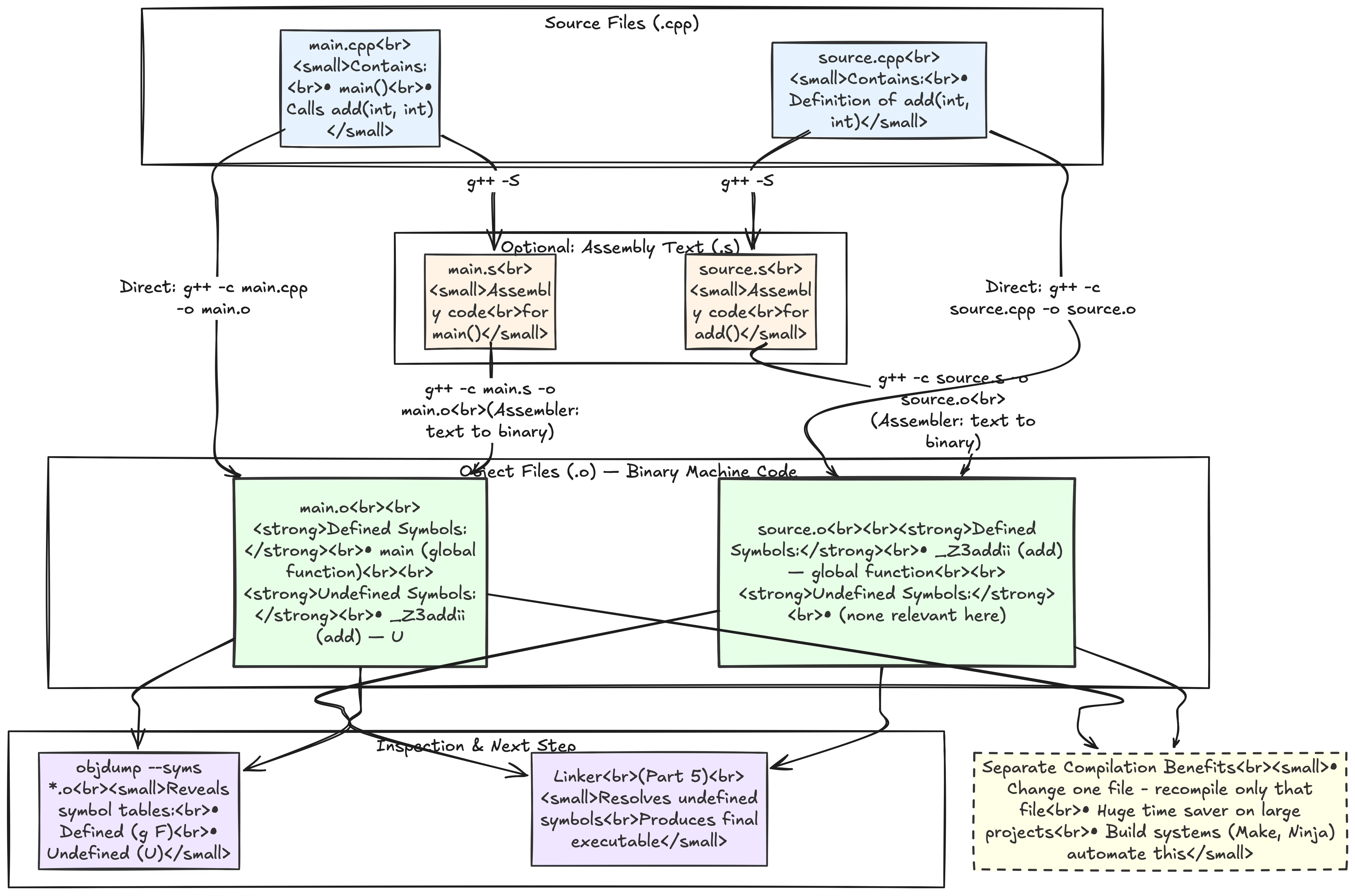
The Assembler’s Job: Text to Binary
Grab the assembly files from last time (main.s, source.s). If you don’t have them:
g++ -S main.cpp -o main.s
g++ -S source.cpp -o source.s
Now let’s assemble them into object files. Use the -c flag to compile without linking:
g++ -c main.s -o main.o
g++ -c source.s -o source.o
List your files:
ls *.oYou’ll see main.o and source.o. These are binary files. Open one in a text editor and it’s gibberish. That’s machine code. Your computer understands it; you don’t (unless you’re a wizard).
Why not just do this in one step? You can. Try:
g++ -c main.cpp -o main.o
g++ -c source.cpp -o source.o
This is what you’d normally do basically skip generating the .s intermediate. The compiler internally generates assembly and immediately passes it to the assembler. But having the -S step available is handy for debugging or learning.
Separate Compilation: Why It Matters
Notice we compiled main.cpp and source.cpp separately. We got two object files. This is huge for large projects. Imagine you have 100 source files. If you change one line in one file, you only need to recompile that file but not all 100. Then you re-link everything. This is what build systems like Make or Ninja do: track which files changed and only recompile those.
Compare that to:
g++ main.cpp source.cpp -o myprogramThis compiles both files every time, even if only main.cpp changed. For two files, it’s instant. For 100 files, it’s minutes. Separate compilation saves your sanity.
Peeking Inside Object Files: objdump
Object files are binary, but we can inspect them with objdump (Linux) or similar tools (otool on macOS, dumpbin on Windows). Let’s see what’s inside:
objdump --syms main.oYou’ll see output like:
main.o:     file format elf64-x86-64

SYMBOL TABLE:
0000000000000000 l    df *ABS*	0000000000000000 main.cpp
0000000000000000 l    d  .text	0000000000000000 .text
...
0000000000000000 g     F .text	000000000000002f main
                 U _Z3addii
Excerpt from objdump output. Symbols vary by system and compiler version.
Let’s decode:
main: This object file defines a function calledmain. Thegmeans it’s a global symbol (visible to the linker). TheFmeans it’s a function. It lives in the.textsection (where code goes).U _Z3addii: This is an undefined reference toadd(int, int)(mangled name_Z3addii). TheUmeans “we know this exists somewhere, but not in this file.”
Now check source.o:
objdump --syms source.oOutput:
source.o:     file format elf64-x86-64

SYMBOL TABLE:
0000000000000000 l    df *ABS*	0000000000000000 source.cpp
0000000000000000 l    d  .text	0000000000000000 .text
...
0000000000000000 g     F .text	0000000000000019 _Z3addii
Here, _Z3addii is defined (no U). The linker’s job in Part 5 will be to match up main.o‘s undefined _Z3addii with source.o‘s definition. That’s how functions in separate files find each other.
Architecture Notes: Tools Vary
On macOS, use otool -tV main.o to disassemble (show assembly from the object file) or nm main.o to list symbols. On Windows with Visual Studio, use dumpbin /symbols main.obj. The concepts are identical, here you’re inspecting binary object files to see what functions and variables they contain.
If you’re on ARM (Raspberry Pi, Apple Silicon), the object file format might be different (Mach-O on macOS instead of ELF on Linux), but the idea holds: object files contain machine code and a symbol table.
Distro-Specific Notes
Different Linux distros might have slightly different objdump versions or default flags. Arch Linux vs. Ubuntu vs. Fedora, all use GNU binutils (which includes objdump), but the output formatting might differ slightly. The core info (symbol names, whether they’re defined or undefined) is always there.
Why Object Files Aren’t Executable
Try running an object file:
./main.oYou’ll get:
bash: ./main.o: cannot execute binary file: Exec format errorObject files lack an entry point. They’re fragments. The linker’s job is to take multiple .o files (and any libraries), resolve undefined symbols, and produce a complete executable with a proper entry point (main on most systems). We’ll do that in Part 5.
Wrapping It Up
The assembler converts assembly text into binary object files (.o). These files contain machine code and a symbol table listing defined and undefined functions/variables. Separate compilation lets you recompile only changed files, speeding up builds. Tools like objdump let you peek inside object files to see what’s there.
Try this: Add a second function to source.cpp, like int subtract(int a, int b). Compile it to an object file and use objdump --syms source.o to see the new symbol. Then modify main.cpp to call subtract and compile and watch for the undefined reference error until you recompile source.o.
Next time, we’ll link main.o and source.o together into a final executable. We’ll explore static linking (baking code into the binary) and dynamic linking (loading shared libraries at runtime). We’ll also intentionally break things to see “undefined reference” errors and fix them. The finish line is in sight.
Your flowchart has HTML elements as text?